Tag Archive for 'Ubuntu'

Dell Latitute D620 Laptop Wireless and Ubuntu 11.10

After installing Ubuntu 11.04 on my Dell D620, I began noticing some wireless connectivity issues. This included delays or problems connecting to my home wireless network, increased latencies particularly when transferring files, and occasional disconnects. After upgrading to Ubuntu 11.10, the problems got worse. Doing some searching online revealed some possible solutions.

Installing the “b43-fwcutter” and “firmware-b43-installer” packages and rebooting the laptop is what ultimately worked for me.

aptitude install --quiet --assume-yes b43-fwcutter firmware-b43-installer

EVGA 680i SLI Motherboard and Ubuntu

A couple years ago, I built two servers and used EVGA 680i SLI motherboards. I chose that particular board because it had two Ethernet jacks and six SATA ports. At the time, I also purchased three SATA hard drives and a SATA optical drive. I plugged the four devices, installed Ubuntu 8.04 LTS and thought nothing of it. When I updated one of my servers to 8.10, I noticed that one of the newer kernel versions didn’t seem compatible with the drive configuration. I used an older kernel version, and eventually, I replaced SATA cables and switched the active SATA ports around. Eventually, it began working correctly on the latest kernel. I upgraded to 10.04 LTS, and things continued without incident.

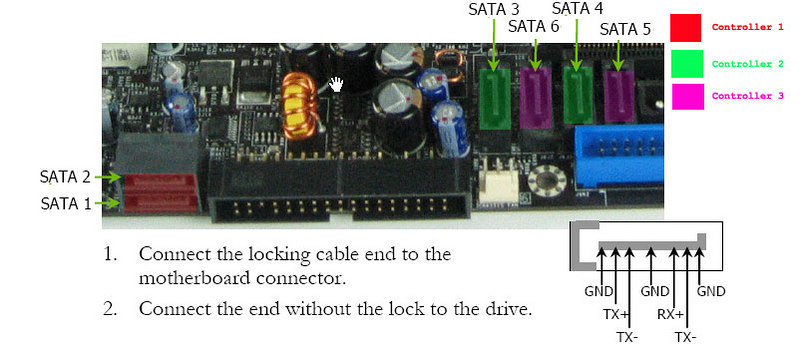
However, a couple days ago when I decided to install a fourth hard drive, I again ran into the same problem. I did some searching and discovered some possible bugs. One of the solutions is to build a custom kernel. I opted to simply shuffle the SATA cables around again and moved all four hard drives to the four ports facing upward (ports 3-6) on the motherboard. I moved the optical drive to one of the two ports facing outward (port 1) on the motherboard.

EVGA 680i SATA Ports

Since the problem occurs during the boot process, and only seems to affect ports 1-2, all four hard drives function properly, and I can still boot from an optical disc or mount a disc once the computer has finished booting. Unfortunately, this solution makes adding a fifth (or sixth) hard drive impossible, but it’s a solution I am willing to live with until the problem is resolved (if it is resolved).

Spawn a Styled xterm into Home and Disown It

First, I set up the styling (no scrollbar, font, font size, background, and foreground colors):

xterm +sb -fa monaco -fs 10 -bg black -fg white

Next, I redirected the output and backgrounded the process:

xterm +sb -fa monaco -fs 10 -bg black -fg white > /dev/null 2>&1 &

This worked well for quite a while, but when I spawn a shell in an arbitrary directory, I wanted my shell to start in home so I added:

eval $( cd ; xterm +sb -fa monaco -fs 10 -bg black -fg white > /dev/null 2>&1 & )

Finally, I wanted to fully disown the new xterm from the shell I spawned it from. Therefore, my .bash_aliases file now has:

alias term='eval $( cd ; xterm +sb -fa monaco -fs 10 -bg black -fg white > /dev/null 2>&1 & disown %1 )'

Now I can cleanly spawn a new terminal that sends no output to the existing shell.

How Nvidia Took the Fun Out of Dual Screen Xorg Configuration

Dual screen configuration used to be quite the hassle on Linux. However, Nvidia has made it incredibly easy with their nvidia-xconfig command. The “–no-logo” argument eliminates the Nvidia logo when X starts, and “–twinview” enables the second display.

nvidia-xconfig --no-logo --twinview

Now I can configure my systems for dual displays during an Ubuntu installation without the need for reinstalling an old hacked together xorg.conf file.

Adobe Flash 10 for 64-bit Ubuntu Linux

Since Ubuntu Hardy Heron, it has become much easier to install Flash on Ubuntu, but the included restricted packages always leave me a bit disappointed. Luckily, Adobe provides a proper 64-bit version of Flash for Linux called “Square”. Since I tend to automate my installations, I wrote a script to install the latest version of Flash on my computer:

#! /bin/bash

# Remove any installed Flash packages
aptitude remove --quiet --assume-yes flashplugin-installer flashplugin-nonfree

cd /tmp/
FLASH="flashplayer10_2_p3_64bit_linux_111710.tar.gz"
wget http://download.macromedia.com/pub/labs/flashplayer10/$FLASH
tar xzvf $FLASH
mv libflashplayer.so /usr/lib64/mozilla/plugins/
rm $FLASH

Now Flash runs properly, and with the switch to “Square,” it even seems to consume fewer resources on my machine.

FreeNX on Ubuntu

I have been using FreeNX on Ubuntu Linux as a terminal server for remote graphical access. (It’s similar to Remote Desktop on Windows.) It’s fast and works quite well on slow Internet connections. NoMachine provides clients for Mac OS X, Windows, and Linux, which means I can connect to my machine from anywhere.

Most of the instructions are available in Ubuntu’s documentation for FreeNX. First, add the repository, update the package listings, and install the FreeNX package:

add-apt-repository ppa:freenx-team
aptitude update
aptitude install --quiet --assume-yes freenx

Finally, set up FreeNX. I opt to use the default SSH key pairs (“–setup-nomachine-key”) because it doesn’t require additional configuration for the client to connect. I added the “–clean –purge” to fix authentication errors that I began having after I upgraded to Ubuntu 9.10.

/usr/lib/nx/nxsetup --install --setup-nomachine-key --clean --purge

After I install a client, I can connect to my computer from anywhere and use it as though I were sitting in front of it.

Simple Scan on Ubuntu

I have an HP ScanJet 5300C scanner and have had no luck getting it to run on Mac OS X after 10.3 Panther, Windows Server 2003, and Ubuntu Hardy Heron. After I upgraded to Ubuntu Karmic Koala, the XSane Image Scanner applications would scan a preview but would not actually save the image. (That’s more progress than I have had for a few years.) Next, I installed Simple Scan, which scanned and saved the image nicely. The program is a little simpler than I would like, but it beats the complexity of XSane. More importantly, it worked.

Ubuntu 9.10 Karmic Koala

I finally upgraded my brother’s desktop computer and my desktop computer to Ubuntu 9.10 Karmic Koala. Prior, both had been running Ubuntu 8.04 Hardy Heron, which was stable but was starting to show its age. I’ve always found that bleeding edge works well for desktops and tried and true works better for servers.

Ubuntu 9.10 works well, but I have discovered a few unresolved bugs that have proven to be annoyances. I’ve resigned myself to not being able to burn optical discs under Karmic because of a bug. This extends beyond Brasero to include the Wodim command line burning tool. After I upgraded, I switched from Rhythmbox to Banshee because it has better iPod syncing capabilities. However, those capabilities are a bit flaky, and I had to use this hack to make things work.

Regardless, it was a helpful and necessary upgrade. I look forward to the Ubuntu 10.04 Lucid Lynx update in April.

Finger Daemon on Ubuntu

Since I set up my Ubuntu servers and desktops at home I have wanted to be able to remotely finger the different computers on my network. By default, a remote finger request will look like this:

zac@dakara:~$ finger @athos
[athos.lund]
finger: connect: Connection refused

The solution is to install the required packages:

apt-get install inetutils-inetd fingerd

Then start the Internet super server:

/etc/init.d/inetutils-inetd start

According to the package details: “Inetd is the daemon that listens on various TCP and UDP ports and spawns programs that can’t or won’t do it for themselves.”

Now a remote finger request will look like:

zac@dakara:~$ finger @athos
[athos.lund]
Login     Name           Tty      Idle  Login Time   Office     Office Phone
zac       Zachary Lund   pts/2          May  4 20:12 (dakara.lund)

The contents of the file /etc/inetd.conf show what is necessary for finger:

finger		stream	tcp	nowait	nobody	/usr/sbin/tcpd	/usr/sbin/in.fingerd

It simply takes an incoming finger request and spawns the appropriate process.

Configure SpamAssassin with Postfix on Ubuntu

I’ve been running a mail server for the last year and a half. When I initially set up my Postfix mail server on Ubuntu, I knew that eventually I would need to add a spam filter. I recently decided that SpamAssassin was the best choice to filter email on my mail server.

I now receive on average more than one spam message each day. Interestingly, all of my spam is sent to an email address that I have only given out to Marquette University. I guess that means they have either sold my email address or poorly secured it in their database. Neither would surprise me.

I used the content from two different tutorials to get SpamAssassin up and running on my server.

First, I installed SpamAssassin.

apt-get install spamassassin spamc

Next, I created the spamd user and group. You can specify a specific uid and gid if you want.

groupadd spamd
useradd -g spamd -s /bin/false -d /var/log/spamassassin spamd

Then I created the spamd home directory and set the permissions.

mkdir /var/log/spamassassin
chown spamd:spamd /var/log/spamassassin

Then I set up some configuration for SpamAssassin. You can edit the file directly, but I use Sed so that I can automate the installation process in a script. This enables SpamAssassin, Cron, and some other options.

DEFAULT_SPAMASSASSIN=/etc/default/spamassassin
mv $DEFAULT_SPAMASSASSIN $DEFAULT_SPAMASSASSIN.default
sed '
    s/ENABLED=0/ENABLED=1/
    s/CRON=0/CRON=1/
    s/^OPTIONS.*/SAHOME="\/var\/log\/spamassassin"\nOPTIONS="--create-prefs --max-children 5 --username spamd -H ${SAHOME} -s ${SAHOME}\/spamd.log"/
' $DEFAULT_SPAMASSASSIN.default > $DEFAULT_SPAMASSASSIN

Then I set up the rest of the configuration for SpamAssassin. I initially set the required score to 2.0, but this caused a lot of legitimate emails (ham) to be marked as spam. The following configuration will rewrite subjects of spam messages to identify them as spam.

SA_LOCAL_CF=/etc/spamassassin/local.cf
mv $SA_LOCAL_CF $SA_LOCAL_CF.default
echo "
rewrite_header Subject [***** SPAM _SCORE_ *****]
required_score           5.0
# to be able to use _SCORE_ we need report_safe set to 0
# If this option is set to 0, incoming spam is only
# modified by adding some \"X-Spam-\" headers and no
# changes will be made to the body.
report_safe     0

# Enable the Bayes system
use_bayes               1
use_bayes_rules         1
# Enable Bayes auto-learning
bayes_auto_learn        1

# Enable or disable network checks
skip_rbl_checks         0
use_razor2              0
use_dcc                 0
use_pyzor               0
" > $SA_LOCAL_CF

Now that I have been running the spam filter for a couple weeks, I have had to whitelist some email addresses that send me emails with strange headers or get sent from “shady” IP addresses. This goes into the same local.cf file.

whitelist_from *@hq.acm.org

I find it amusing that emails from the ACM keep getting marked as spam. Next I started SpamAssassin.

/etc/init.d/spamassassin start

Next, I modified Postfix to send emails through the SpamAssassin filter.

POSTFIX_MASTER_CF=/etc/postfix/master.cf
mv $POSTFIX_MASTER_CF $POSTFIX_MASTER_CF.default
sed 's/smtp      inet  n       -       -       -       -       smtpd/smtp      inet  n       -       -       -       -       smtpd\n\t-o content_filter=spamassassin/'  \
$POSTFIX_MASTER_CF.default > $POSTFIX_MASTER_CF
echo 'spamassassin unix -     n       n       -       -       pipe
  user=spamd argv=/usr/bin/spamc -f -e
  /usr/sbin/sendmail -oi -f ${sender} ${recipient}' >> $POSTFIX_MASTER_CF

Next, reload Postfix so it will use SpamAssassin.

/etc/init.d/postfix reload

Once SpamAssassin is running, you can train it by passing it spam and ham emails.

sa-learn -u spamd --spam --mbox /path/to/spam_mbox
sa-learn -u spamd --ham --mbox /path/to/ham_mbox

After adjusting the spam threshold, training the filter with spam messages that I have acquired over the last year, and whitelisting a few problematic senders, my spam filter has been doing a good job of marking spam as spam. At this point it is easy enough to sort through the email manually and confirm that they are spam. In the future, if it ever gets bad enough, I will be able to automatically delete the messages or filter them into a different mailbox on delivery.